Enabling Provisioning With Microsoft Entra ID
If you have a Microsoft 365 Education subscription that includes School Data Sync (SDS), choose the first tab below.
If you do not have access to School Data Sync through your Microsoft subscription, choose the second tab, administrative units. Administrative units are Entra ID resources that contain other resources, such as users or groups. They enable you to assign roles and restrict permissions within your organization.
Microsoft Education
Administrative Units
A. Granting Permissions in Typing Pal
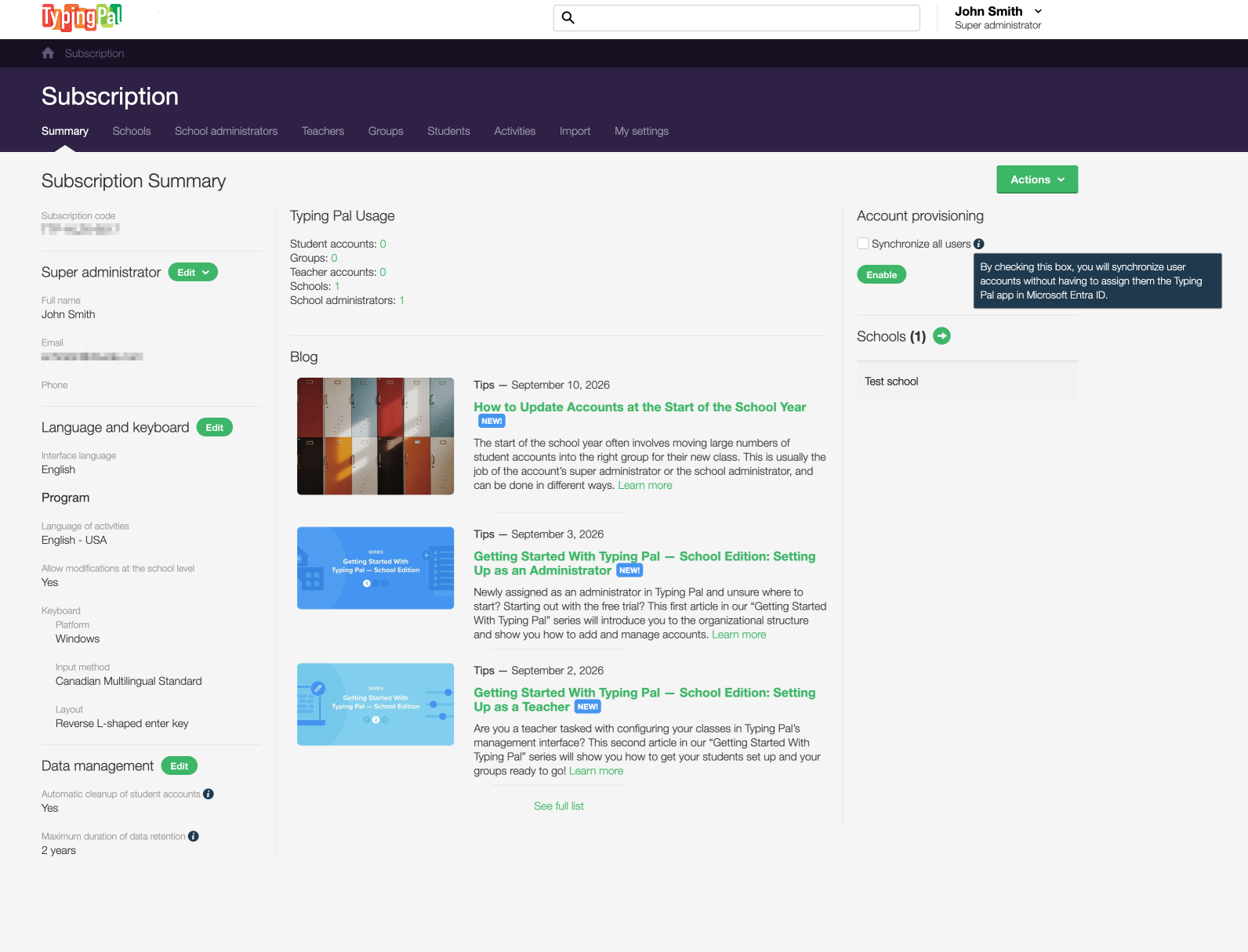
Log in to Typing Pal’s management interface with the super administrator account. In the Subscription Summary page (1), click the Enable button in the Account provisioning section on the right (2).
Note — Check the box Synchronize all users (3) to synchronize accounts without needing to manually assign them the Typing Pal enterprise application in Entra ID.
-
 123
123
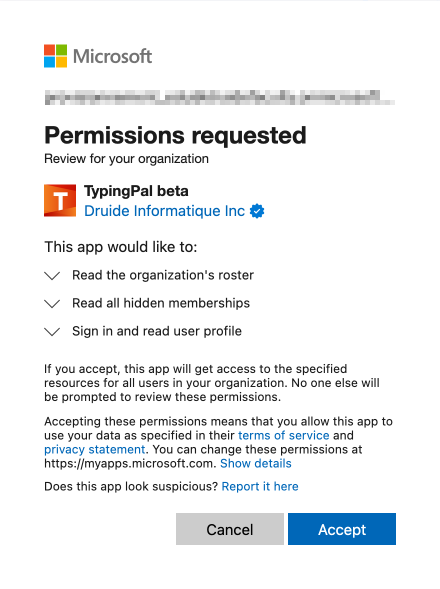
To enable provisioning with Entra ID, Typing Pal needs access to certain data. The table below lists what data is needed and why.
| Permission | Purpose |
|---|---|
| Read the organization’s roster | Access schools, groups and users to sync them |
| Read all hidden memberships | Access group members to add students and teachers to groups |
| Sign in and read user profile | Use single sign-on |
-
 4
4
Click Accept (4) to grant Typing Pal the necessary access for enabling provisioning.
B. Configuring Schools
You must create schools with Microsoft School Data Sync (SDS) and use a tool, such as Powershell, CSV or Graph API, to feed it in order to create an internal label “School” for the administrative unit that represents the school.
Note — The label is not available if the school is created with Entra ID tools.
Confirm the created school using the administrative unit panel in Entra ID. The names of the schools you provide us can also be found there.
C. Configuring Groups
You must also create groups with SDS and use a tool, such as Powershell, CSV or Graph API, to feed it in order to create an internal label “Classes” for the group.
Note — The label is not available if the group is created with Entra ID tools.
You can see the groups associated with an administrative unit by going to the Groups tab (1).
-
 1
1
D. Configuring Users
You can create users with SDS or Entra ID. We recommend using SDS because you can assign roles and add users to groups and schools all at once.
Users created with SDS are automatically assigned the default role of teacher or student. However, school administrators need to be assigned this specific role.
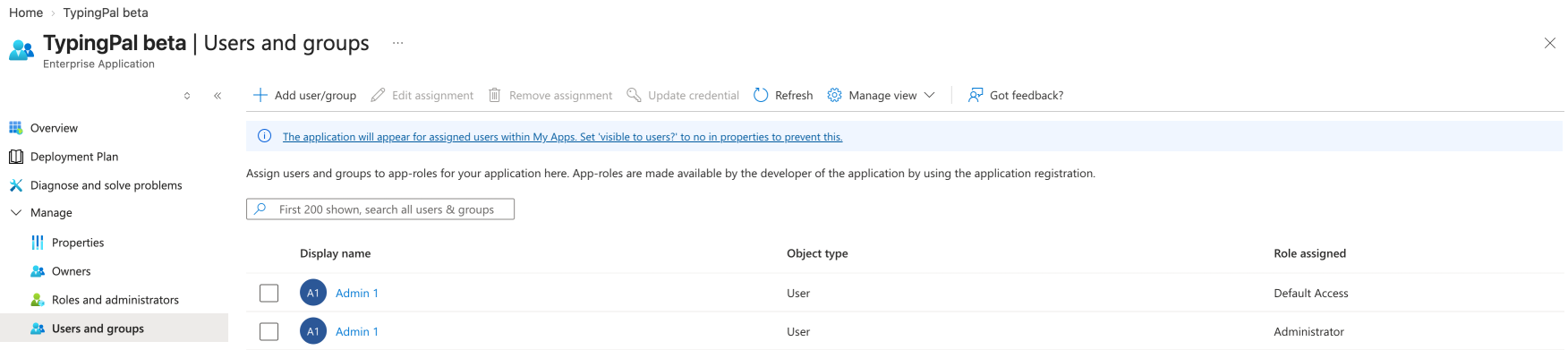
Users created with Entra ID need to be manually assigned a role. You can assign the role to an individual user or the users of an entire group. In addition, you can add the user to schools and groups using the enterprise application.
To do so, go to the Users and groups tab in your enterprise application (1) and click the user you want to edit (2).
-
 21
21
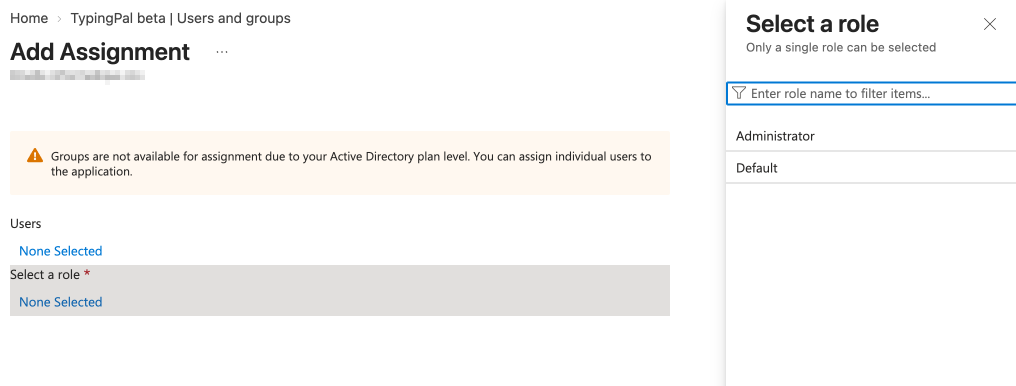
On the right side, under Select a role, enter the role name in the field (3) or select between the options underneath (4).
-
 43
43
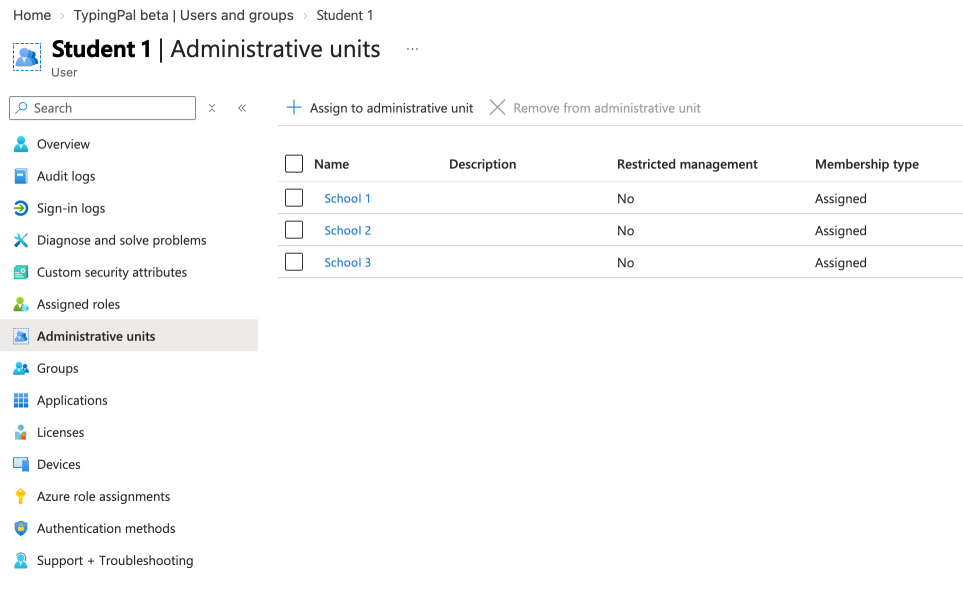
You can then see each user’s schools by going to their Administrative units tab (5).
-
 5
5
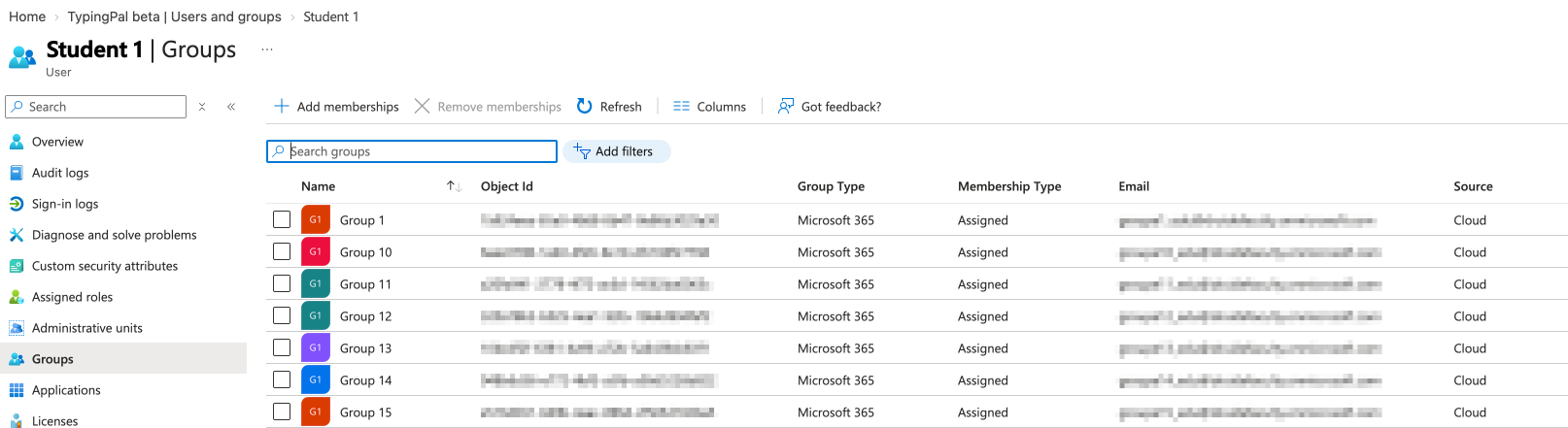
You can also see their groups in the Groups tab (6).
-
 6
6
E. Completing the Configuration
Once you have granted Typing Pal the relevant permissions and configured Entra ID, you need to send us the final list of schools and a list with your groups and users during the beta.
We will sync only the list of schools you provided us for your test environment and use the list of groups and users to review the synchronization. When these steps are completed, we will send you an email to confirm that the operation was successful.
F. Accessing the Typing Pal App in Entra ID
The Typing Pal beta app appears in your enterprise applications. Users can access it through the Microsoft App Dashboard or with the homepage URL.
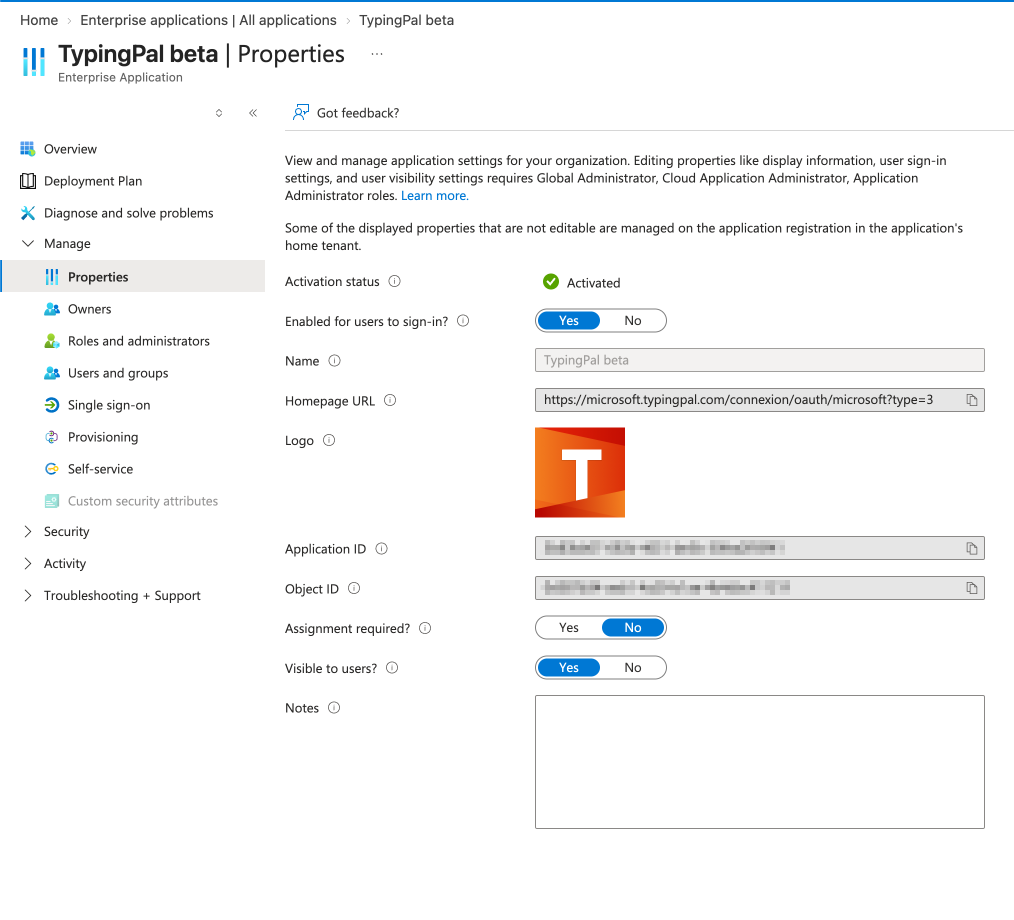
If you want to use the Microsoft App Dashboard, make sure this option is enabled. To do so, go to the Properties (1) of the Typing Pal enterprise app and leave the toggle Visible to users? set to Yes (2).
-
 21
21
Once provisioning is in place, you will be able to check the following:
- If users can log in to and use Typing Pal (with the provided homepage URL)
- If students can do activities
- If administrators can manage schools
- If teachers can manage their groups
G. Informing Users on How to Log In
Let your users know how to access Typing Pal, whether by using the dashboard or the internal URL.
References
- Learn more about SDS
- Read about creating and managing groups with SDS
A. Granting Permissions in Typing Pal
Log in to Typing Pal’s management interface with the super administrator account. In the Subscription Summary page (1), click the Enable button in the Account provisioning section on the right (2).
Note — Check the box Synchronize all users (3) to synchronize accounts without needing to manually assign them the Typing Pal enterprise application in Entra ID.
-
123123
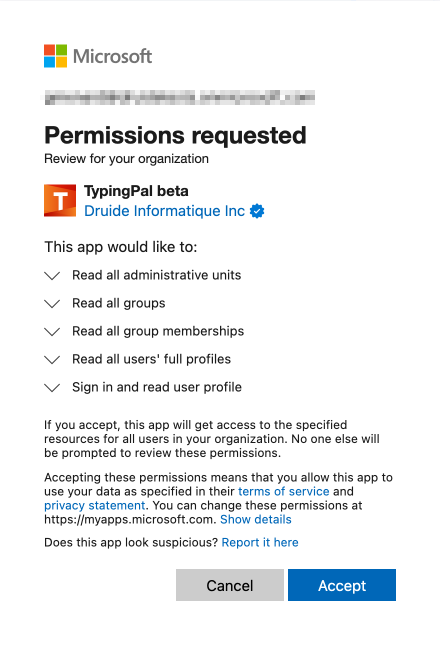
To enable provisioning with Entra ID, Typing Pal needs access to certain data. The table below lists what data is needed and why.
| Permission | Purpose |
|---|---|
| Read all administrative units | Access school data to sync schools |
| Read all groups | Access group data to sync groups |
| Read all groups memberships | Access group members to add students and teachers to groups |
| Read all users’ full profiles | Access user data to sync users |
| Sign in and read user profile | Use single sign-on |
-
 4
4
Click Accept (4) to grant Typing Pal the necessary access for enabling provisioning. Click Accept (4) to grant Typing Pal the necessary access for enabling provisioning.
B. Configuring Schools
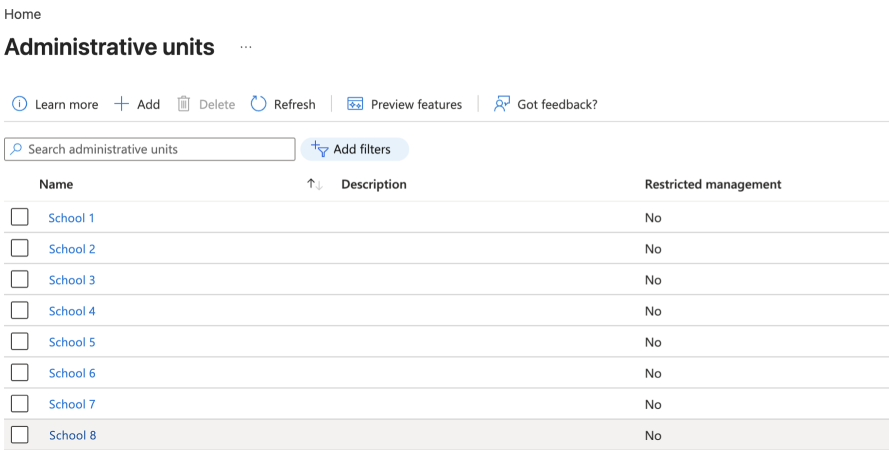
In order for provisioning to work, it is necessary to create at least one school as an administrative unit and one group in Entra ID.
In Entra ID, go to the Administrative units page and click Add (1).
-
 1
1
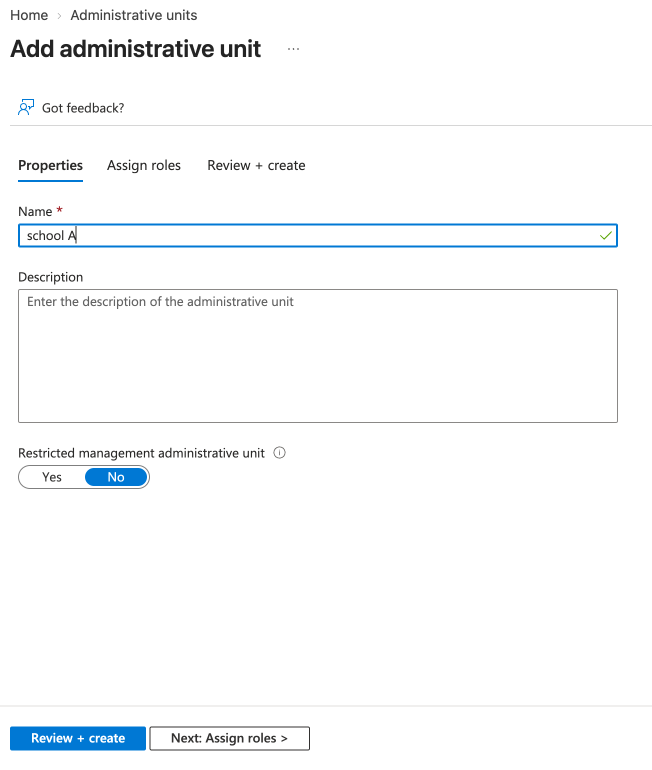
Fill out the fields (2), then click the Review + create button (3).
-
 23
23
C. Configuring Groups
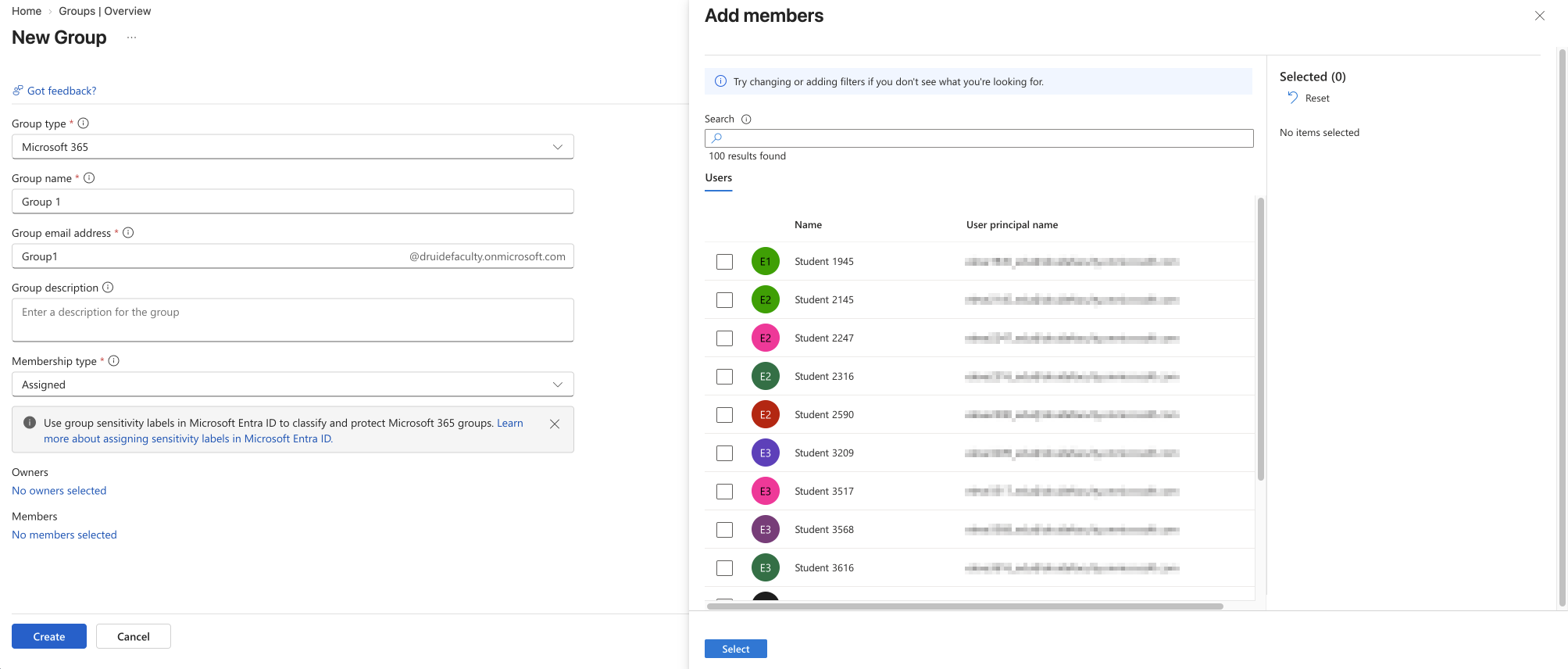
In your Entra ID environment, in the Services section, select Groups, then click the New group button.
For the Group type field, choose Microsoft 365 (1). Then, enter a group name (2). Lastly, click the Create button (3).
-
 123
123
Associate the group with the school you previously created. Click Assign to administrative unit (4), select the school from the list (5), then click the Select button (6).
-
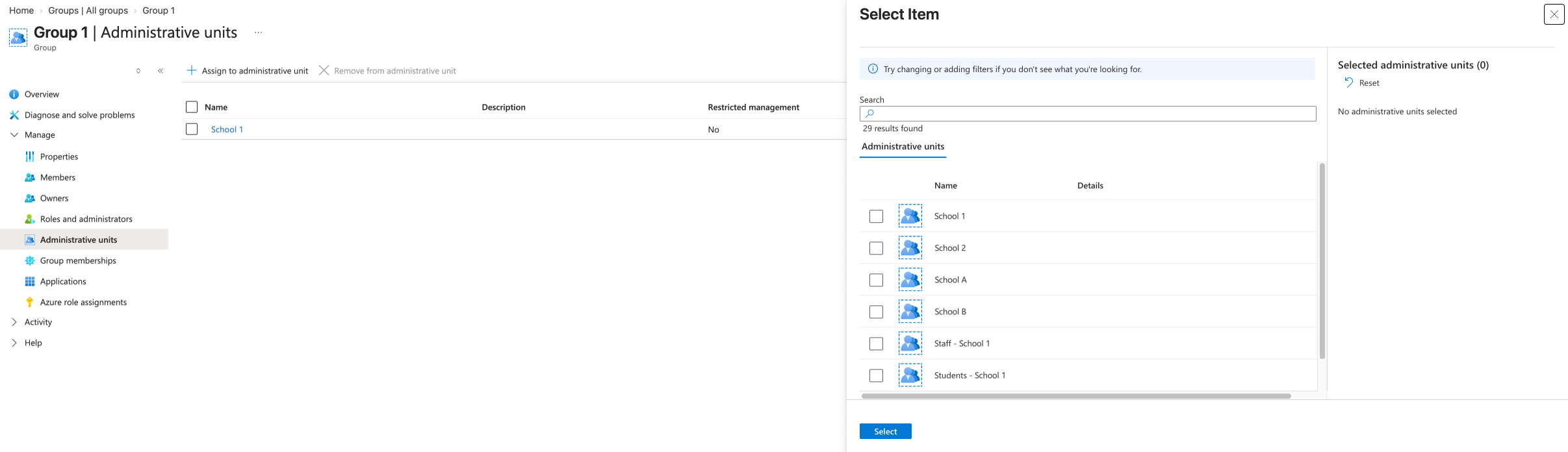 456
456
Note — Only groups that are part of a school will be synchronized. Groups of groups, for example, will not be.
Important — In Typing Pal, a group can only be part of one school. If your Microsoft configuration doesn’t adhere to this constraint, the group will be associated with only one school in Typing Pal once provisioning has been configured.
D. Configuring Users
When a user is created in Entra ID, they must be assigned a role. You can use the enterprise application to add users to schools and groups, as well as to assign users their role.
Tip — Instead of assigning roles individually, you can assign the role to a group, then add users to the group. The role will be automatically assigned to them. The teacher role is overridden.
To do so, go to the Users and groups tab (1) in your enterprise application. Click the user you want to edit (2).
-
2121
On the right side, under Select a role, enter the role name in the field (3) or select between the options underneath (4).
-
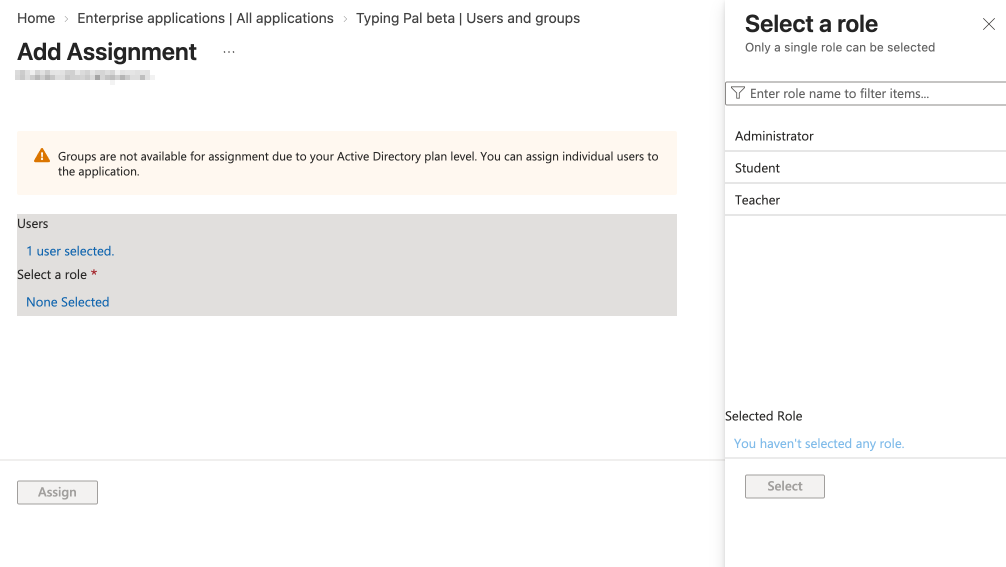 43
43
To add a user to a school, go to their Administrative units tab (5) and click Assign to administrative unit (6).
-
56
Check the box next to the schools you want to add them to (7), then click Select (8).
-
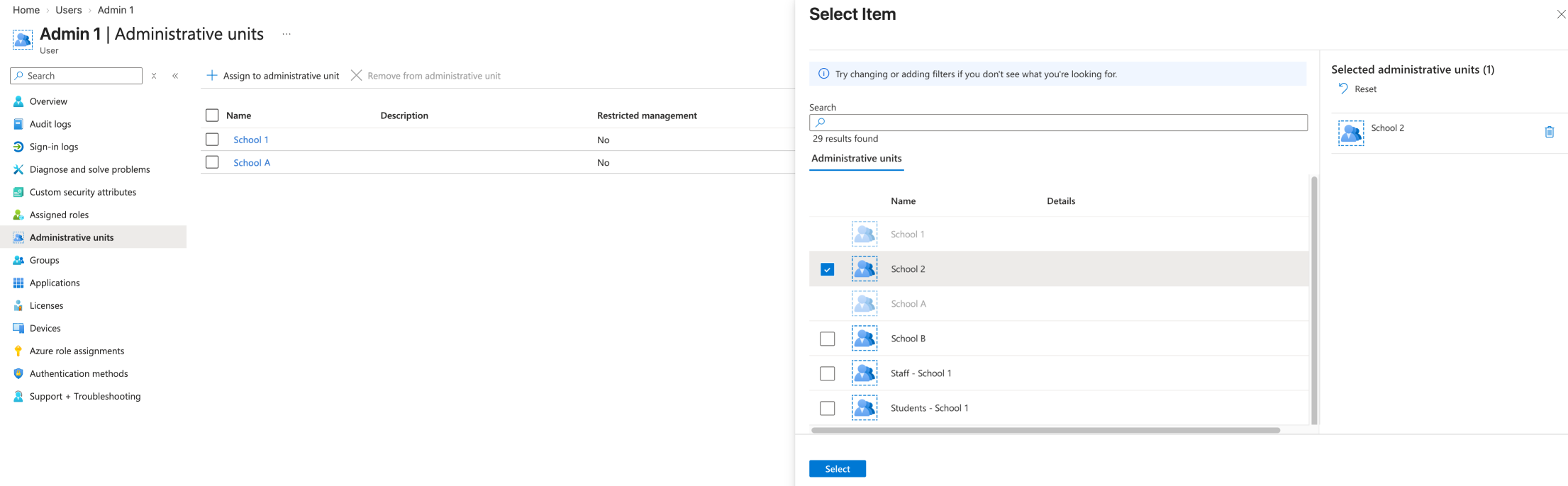 87
87
To add a user to a group, go to their Groups tab (9) and click Add memberships (10).
-
109
Check the box next to the groups you want to add them to (11), then click Select (12).
-
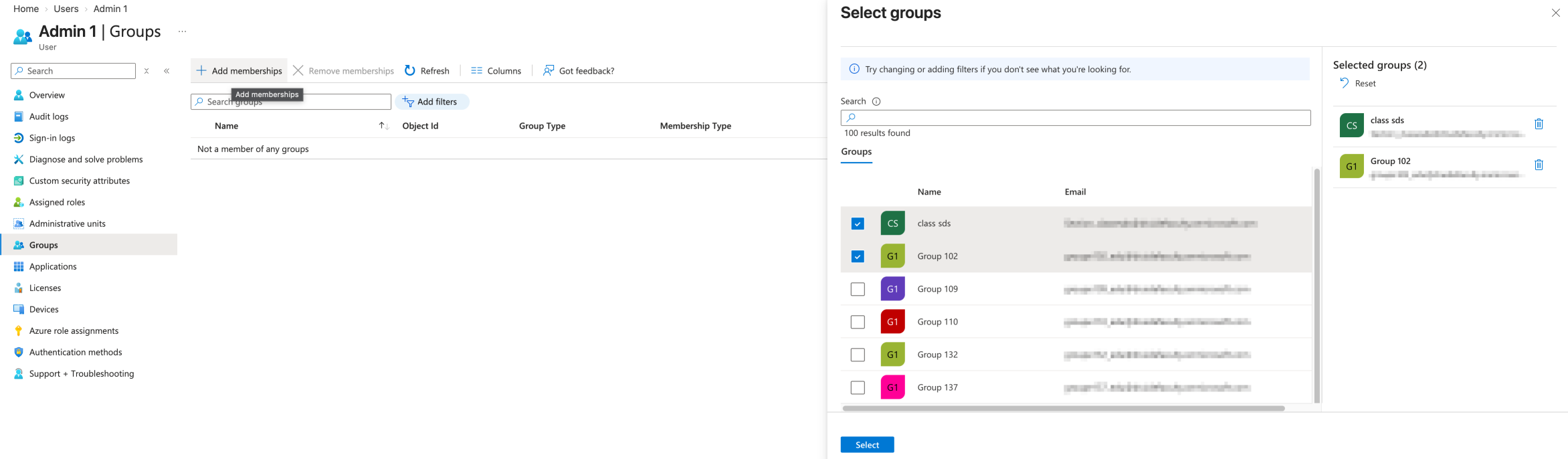 1211
1211
E. Completing the Configuration
Once you have granted Typing Pal the relevant permissions and configured Entra ID, you need to send us the final list of schools and a list with your groups and users during the beta.
We will sync only the list of schools you provided us for your test environment and use the list of groups and users to review the synchronization. When these steps are completed, we will send you an email to confirm that the operation was successful.
F. Accessing the Typing Pal App in Entra ID
The Typing Pal beta app appears in your enterprise applications. Users can access it through the Microsoft App Dashboard or with the homepage URL.
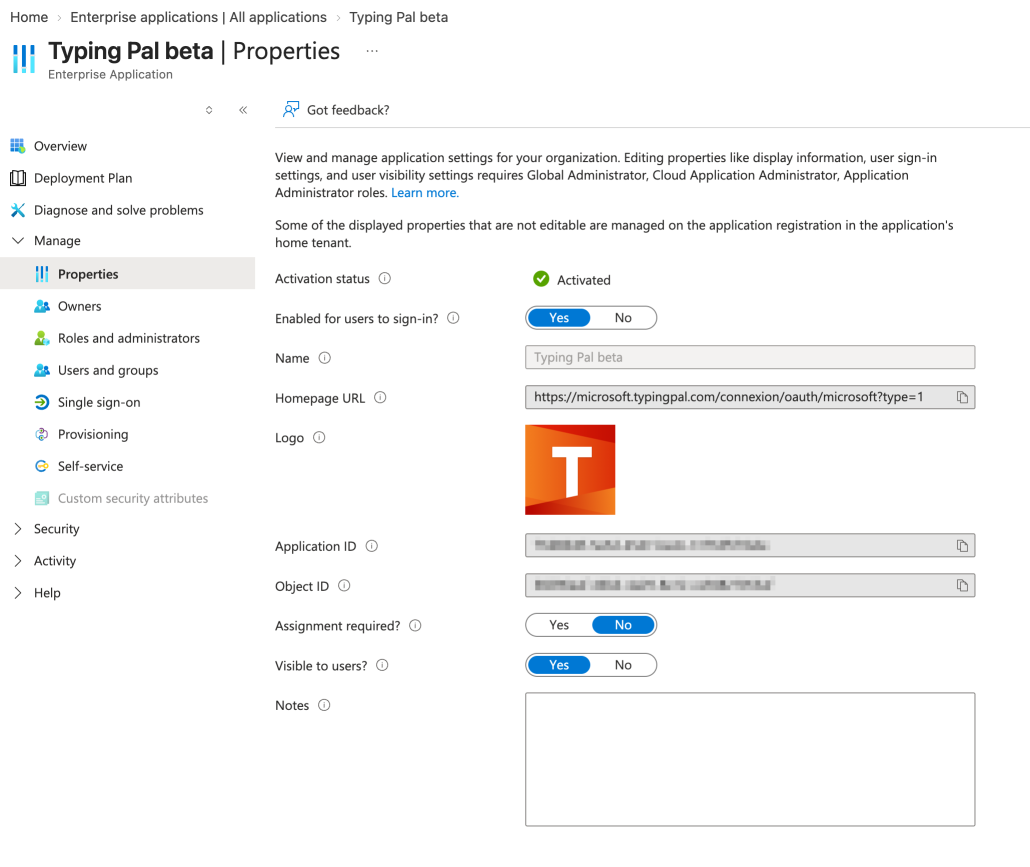
If you want to use the Microsoft App Dashboard, make sure this option is enabled. To do so, go to the Properties (1) of the Typing Pal enterprise app and leave the toggle Visible to users? set to Yes (2).
-
 21
21
Once provisioning is in place, you will be able to check the following:
- If users can log in to and use Typing Pal (with the provided homepage URL)
- If students can do activities
- If administrators can manage schools
- If teachers can manage their groups
G. Informing Users on How to Log In
Let your users know how to access Typing Pal, whether by using the dashboard or the internal URL.
References
- Learn more about administrative units.
- See how to assign users and groups to an enterprise application.